

LeapFrog Labs Onboarding Guide
Welcome to LeapFrog Labs! This guide will help you connect your cloud provider, get started with the platform, and complete the onboarding process to unlock the full potential of LeapFrog Labs.Overview
LeapFrog Labs is a platform designed to streamline your cloud-based workflows. To get started, connect your preferred cloud provider (currently supporting Google Cloud Platform) and schedule a personalized onboarding session for a tailored setup experience.Support for Amazon Web Services and Microsoft Azure is coming soon!
Getting Started
Step 1: Connect Your Cloud Provider
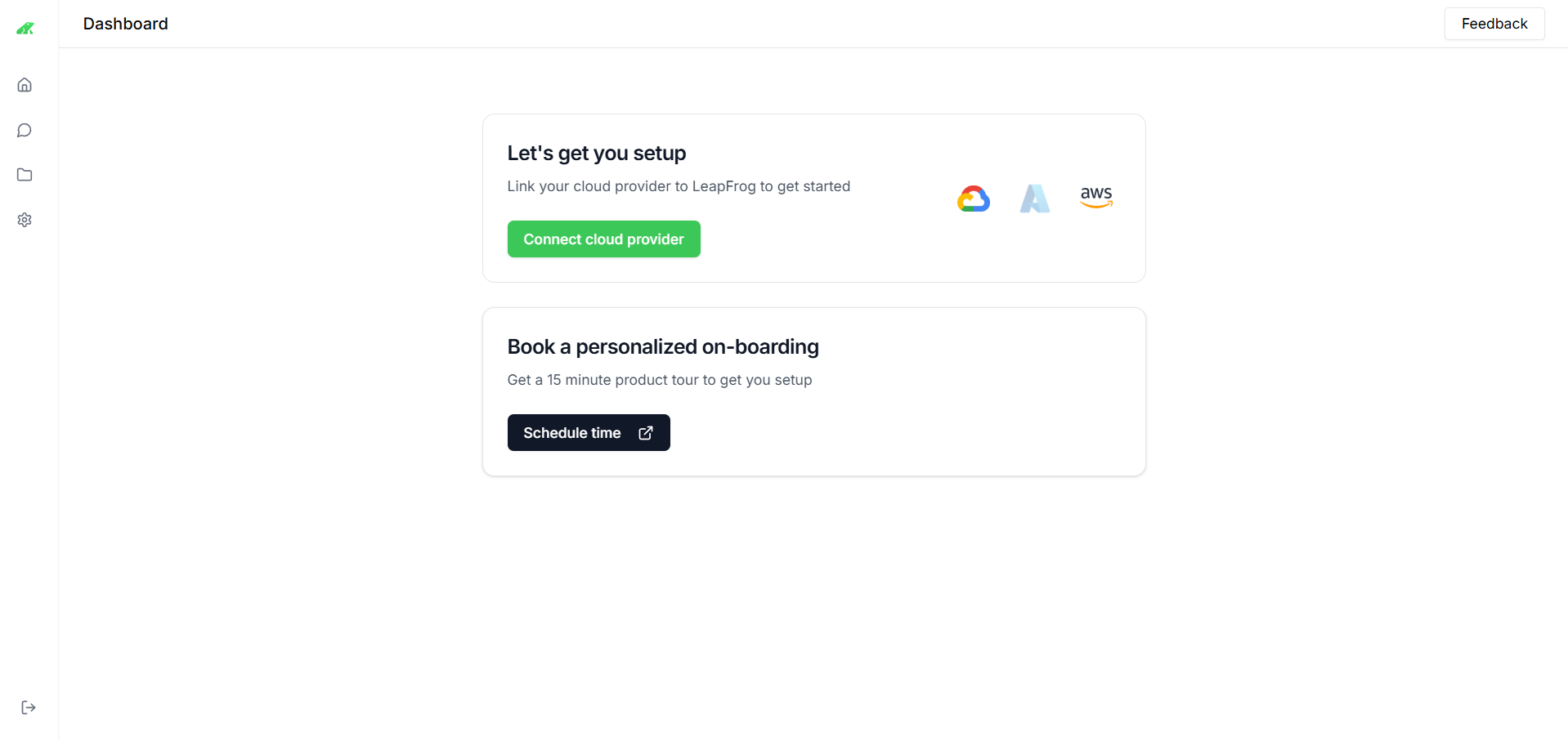
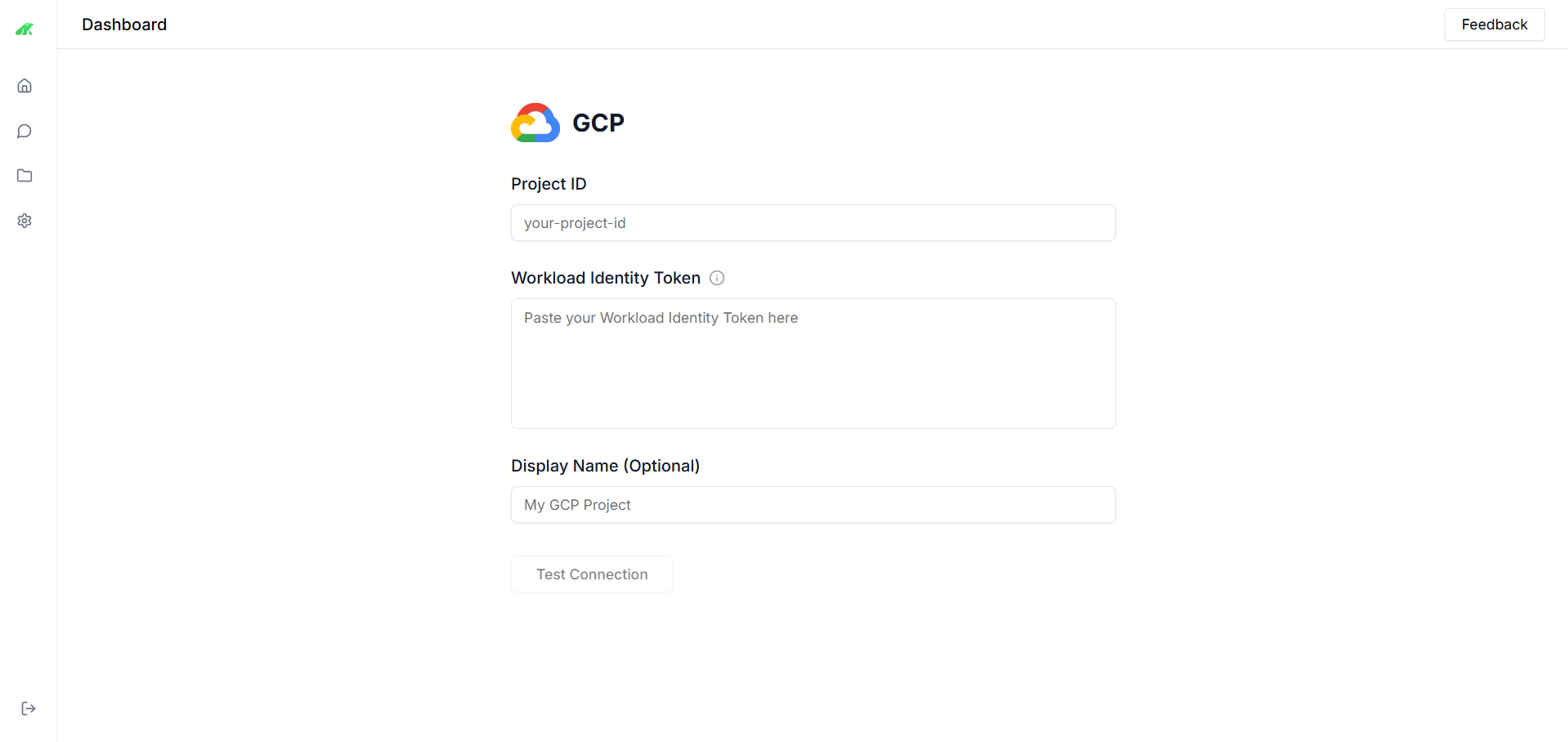
Link your cloud provider to LeapFrog Labs to enable seamless integration and access to your resources.- Access the Dashboard
- Connect a Provider
- Configure Google Cloud Platform
- Confirmation
Log in to app.leapfrog.cloud and navigate to the Dashboard.
Onboarding Users
Initial Setup
- New Users: Upon first login, users are directed to the Dashboard with the “Let’s get you setup” prompt.
- Admin Assistance: Assign an admin to guide users through cloud provider connection and onboarding scheduling.
Schedule Your Onboarding Session
Contact support to book a personalized onboarding session and maximize your platform experience.
Getting to Know Your Cloud Resources
Explore and manage your cloud resources effectively.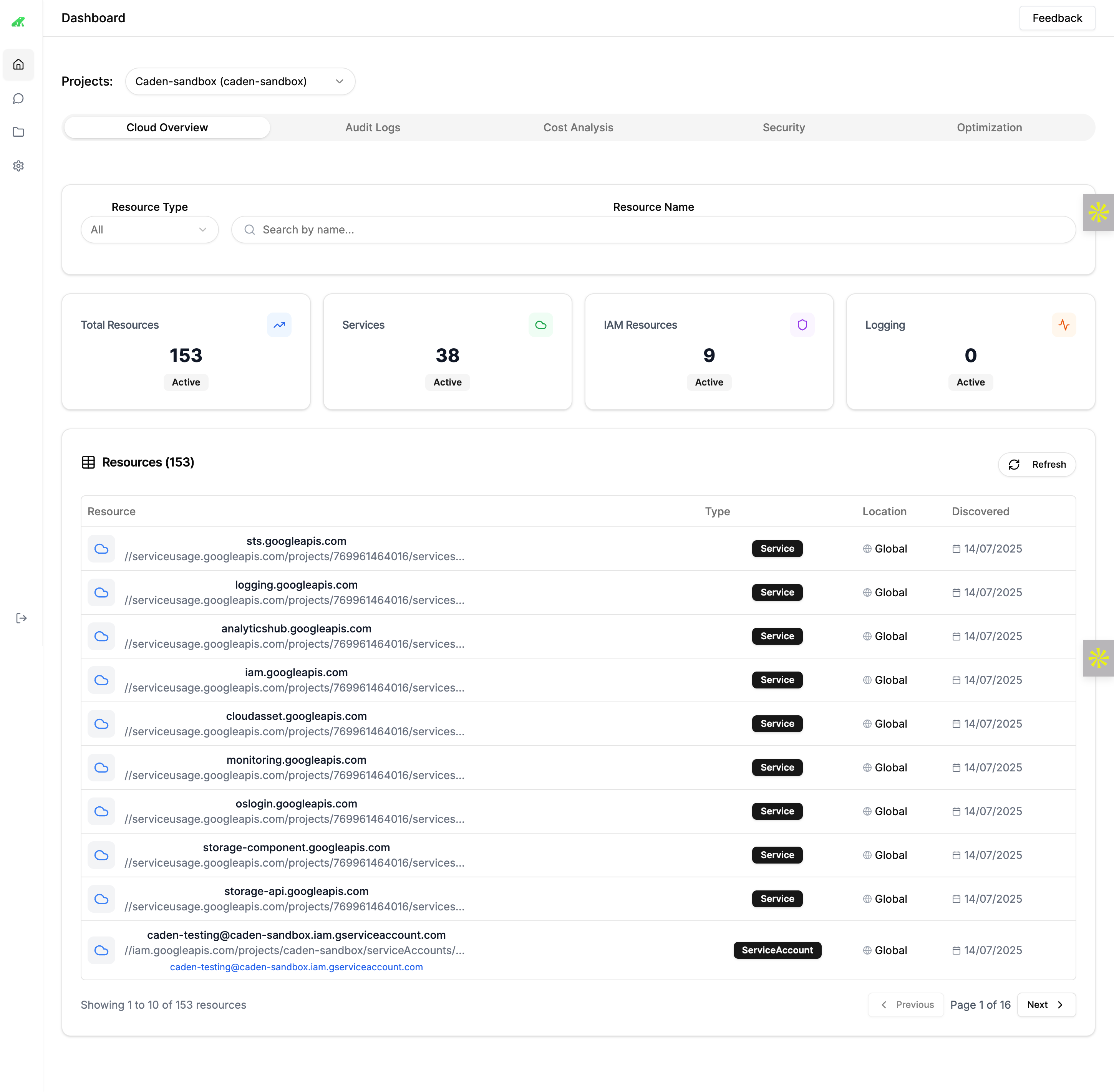
- View Total Resources: Check the total number of resources (e.g., 153 active) on the Cloud Overview tab.
- Filter by Type: Use the Resource Type dropdown to filter by Services, IAM Resources, or Logging.
- Search Resources: Enter a resource name in the search bar to locate specific items.
- Details: Click a resource to view its type, location, and discovery date.
Click on individual resources to explore detailed insights and configurations.
Audit Logs
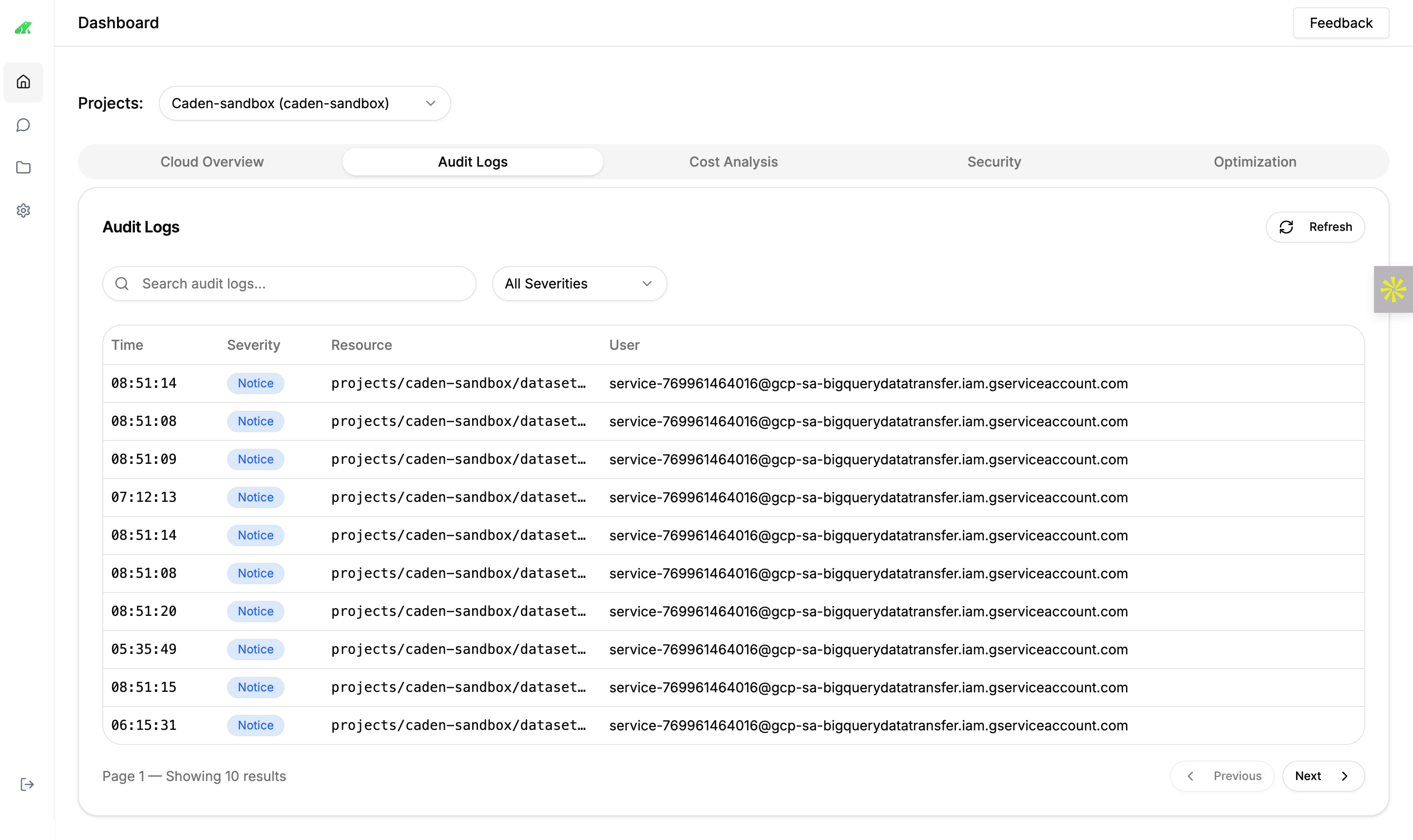
Monitor activities and troubleshoot issues.- Navigate to the Audit Logs tab.
- View logs by time, severity, resource, and user (e.g., notice-level logs for
caden-sandbox). - Use the Refresh button to update logs in real-time.
- Search logs with the search bar to filter by specific events or resources.
Cost Analysis
Track and optimize your cloud spending.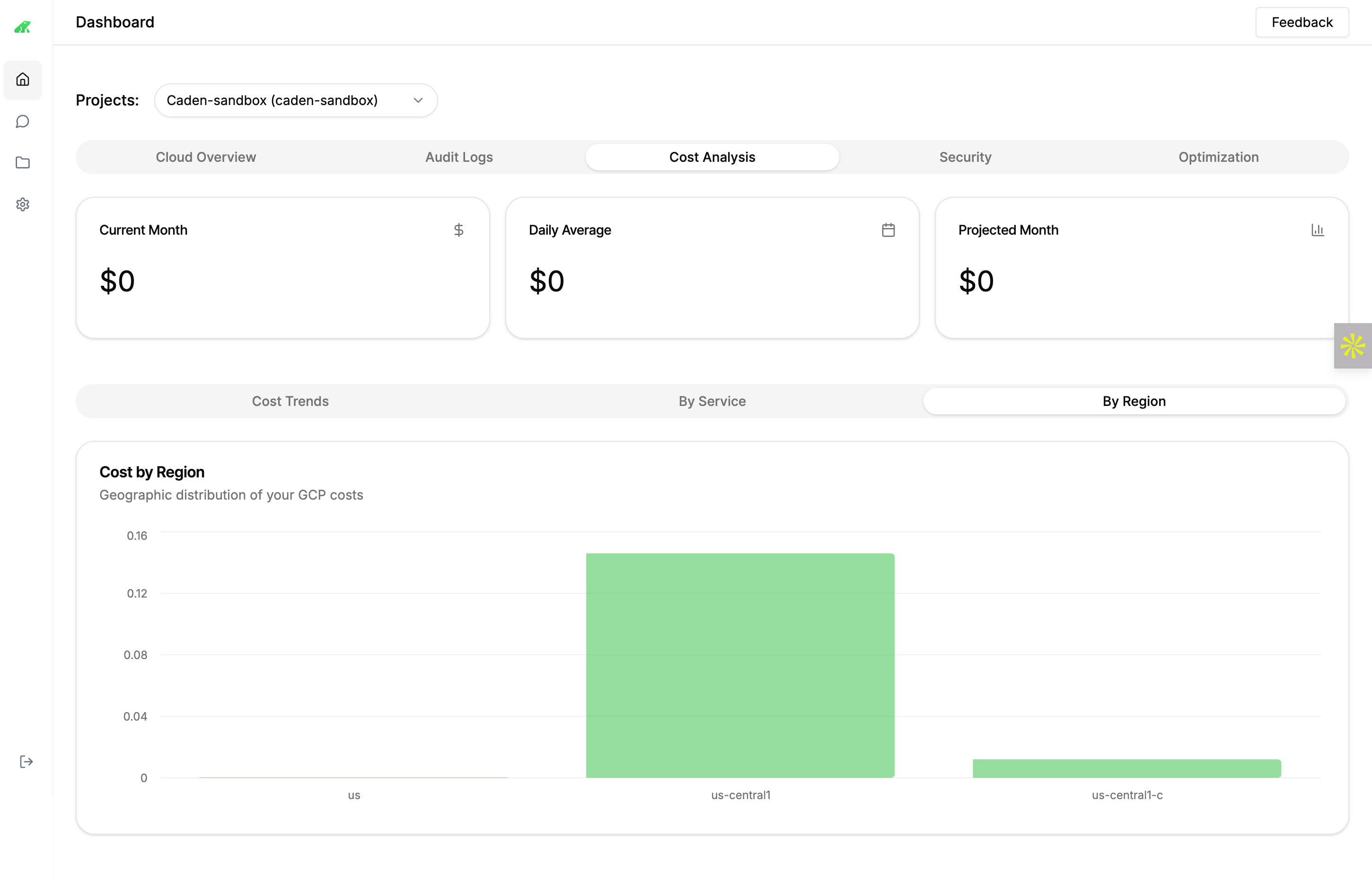
- Current Month
- Daily Average
- Projected Month
View total costs for the current month (e.g., $0).
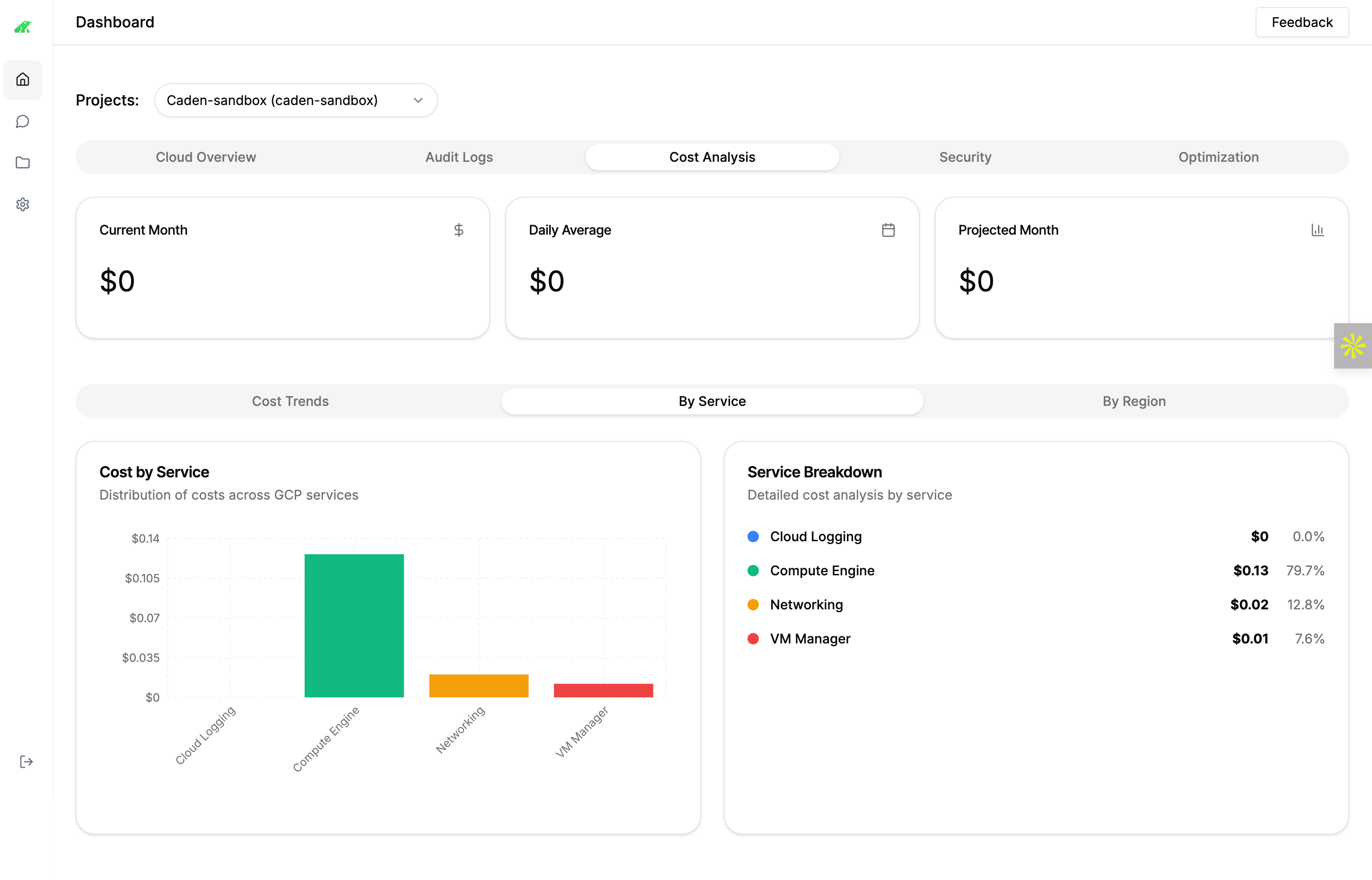
- Cost Trends: Analyze cost distribution over time.
- By Service: Breakdown costs by service (e.g., Compute Engine at $0.13).
- By Region: View geographic cost distribution (e.g., us-central1).
Chat with Caden
Interact with Caden for assistance and automation.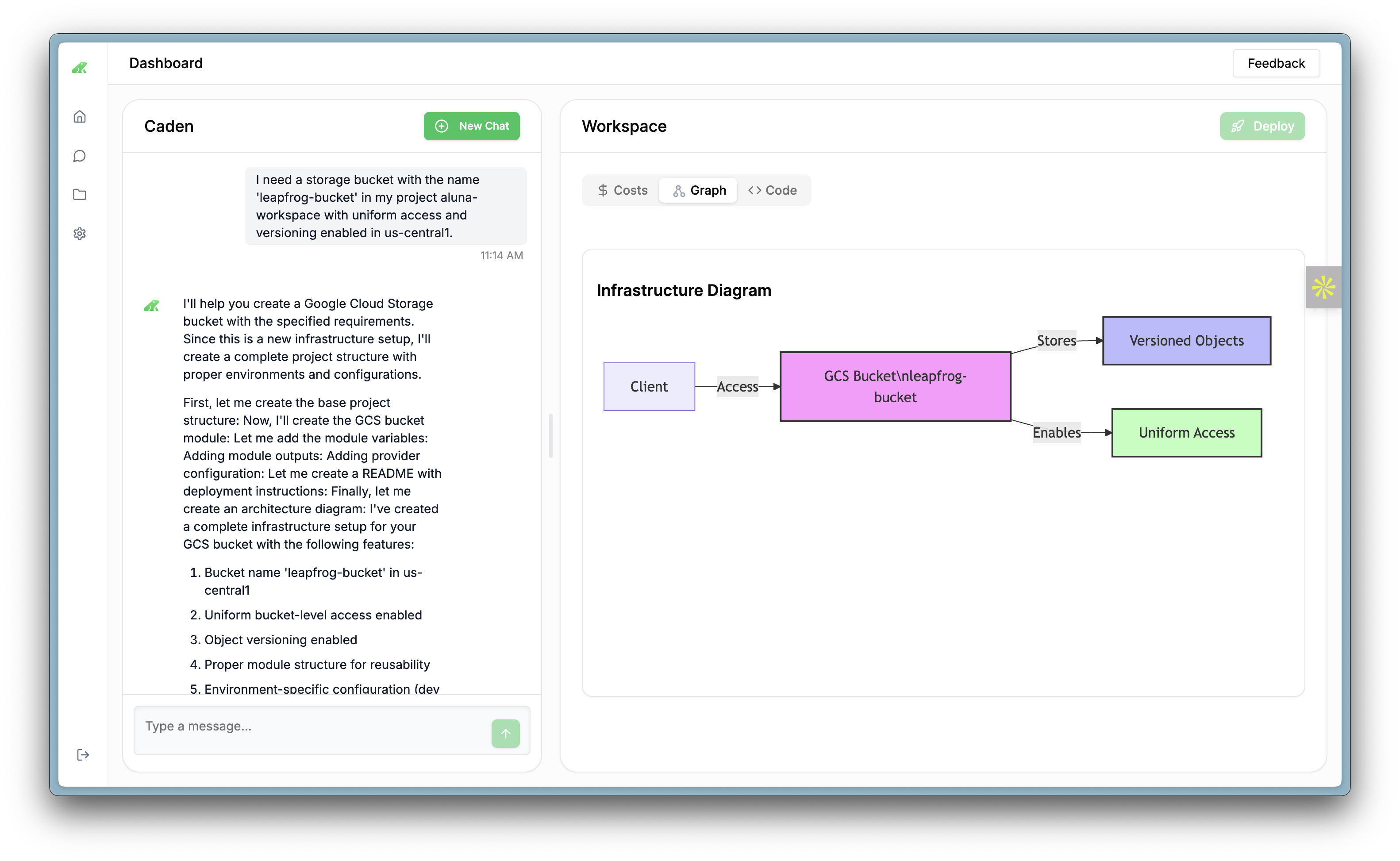
- Access the chat interface on the left sidebar.
- Type commands like “Create a storage bucket” to build resources.
- Caden provides step-by-step guidance and diagrams.
- Use the New Chat button to start fresh conversations.
Building Resources with Caden
Create and manage resources using Caden’s AI capabilities.- Initiate a Request
- Follow Instructions
- Review Diagram
- Deploy
In the chat, type a request (e.g., “I need a storage bucket named ‘leapfrog-bucket’ with versioning enabled in us-central1”).
Ongoing Support
- Feedback: Use the Feedback link (top right) to report issues or suggest improvements.
- Documentation: Refer to this guide and other resources at app.leapfrog.cloud/docs.
Need Help?
Contact our support team for assistance at any time.
Best Practices
Ensure your Workload Identity Token is kept secure and updated as per our Identity Token Federation documentation.
- Testing: Always test the connection after configuring a cloud provider.
- Engagement: Attend the onboarding session to maximize platform usage.
Next Steps
- Explore your connected cloud resources on the Dashboard.
- Check your email for onboarding session details.
- Contact support at support@leapfrog.cloud for assistance.